
Quick phrases
Start with quick phrases and organize common items according to your actual work needs.

Every product detail, design, and button is created with the user experience in mind

Don't see the app you need? Contact us to help you adapt it.

Supports multiple users on one device with cloud data sync
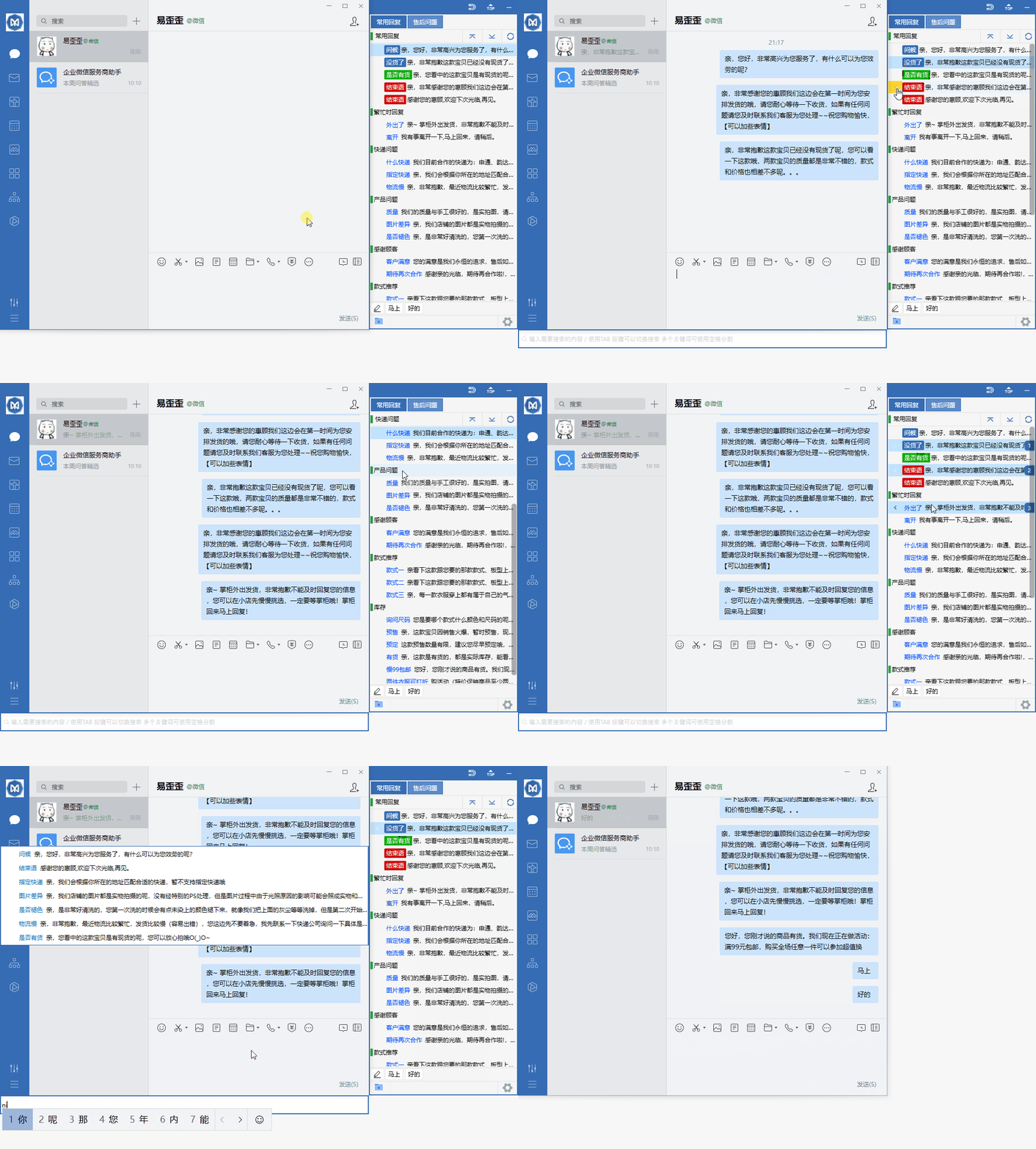
Organize daily customer service communication with reply categories, quick input, and team sync.
Start with quick phrases and organize common items according to your actual work needs.
Combine data grouping with team sync to keep daily operations clearly organized.
Use desktop communication in a familiar interface and adjust your settings as needed.
View options related to quick phrases, and confirm device and version information before getting started.
Select your device system in the download center and view the corresponding version name.
Open the installation file and follow the installation prompts on your device to complete setup.
Yiwaiwai provides clear client guidance and common question explanations to help you complete initial setup on your computer, phone, or tablet and quickly enter a stable usage state.
Select the Windows, macOS, Android, or iOS version based on your current device system, then follow the prompts to complete installation after downloading.
After opening the client, enter your account information and select a recommended node to establish a connection, without manually modifying complex parameters.
Regularly checking for version updates can bring stability optimizations and compatibility improvements, reducing abnormal fluctuations during use.
First confirm that your device is connected to the internet and check whether the client is the latest version. If you still cannot connect, try switching to a different node or restarting the client and connecting again.
Yiwaiwai supports switching between commonly used devices, but to avoid abnormal disconnections, it is recommended not to connect a large number of devices at the same time.